You’re ready to ride, but Zwift says “No Signal”. Or your trainer never appears. Before you start changing every setting, take a breath and look at what is actually missing: the device, its power reading, or its resistance control.
Start with the matching symptom below and change one thing at a time. Different trainers, computers, and connection methods require different checks; there isn’t a single fix that works for every setup.
First, find the right pairing field
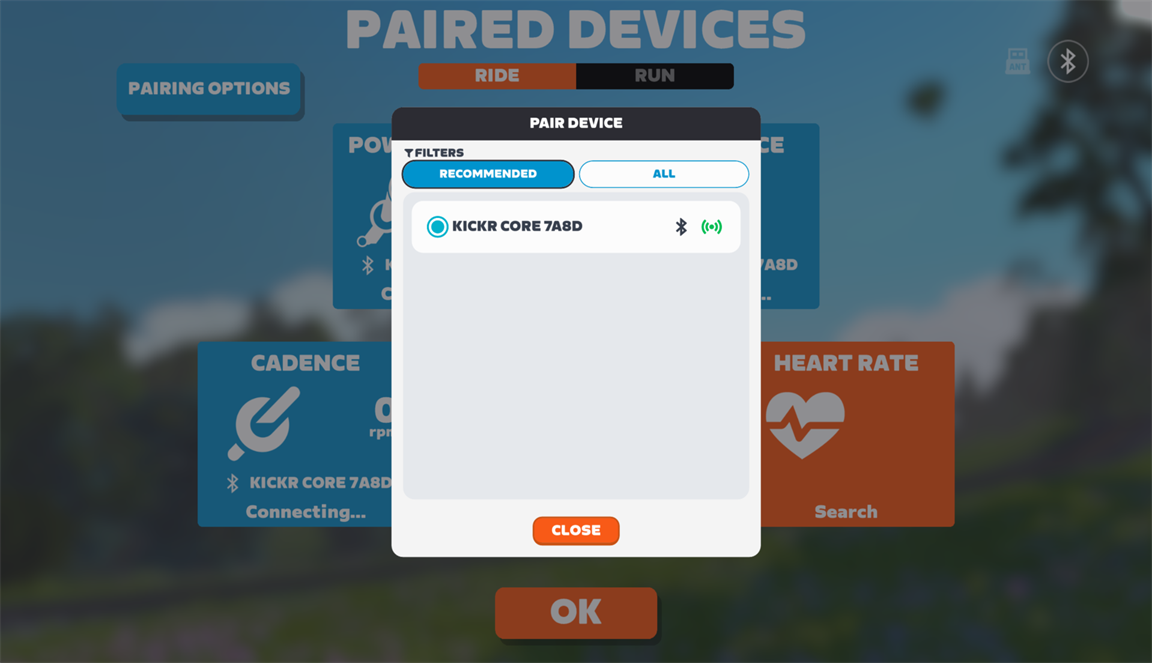
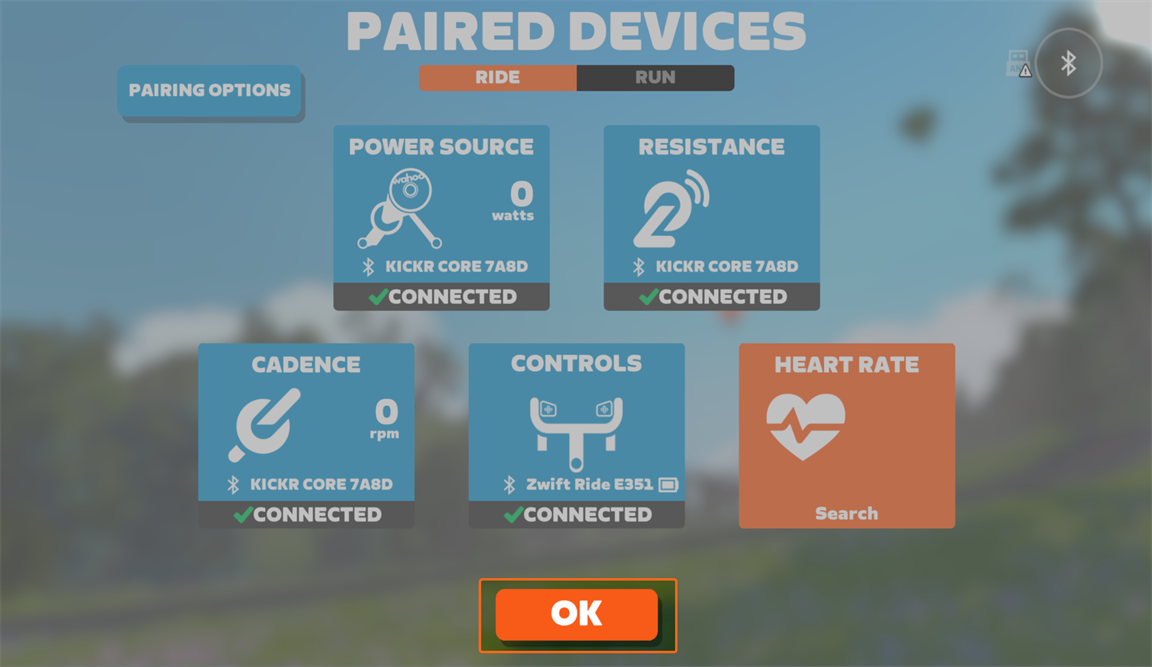
Open Paired Devices. If Zwift connected in the background and took you straight to Home, use the connection icon to open it. Power Source receives watts from a smart trainer or power meter. Speed Sensor is the alternative for a supported classic-trainer setup. Resistance lets Zwift control a compatible smart trainer. Cadence, heart rate, and controls have their own fields.
A connected heart-rate monitor does not tell you whether the trainer is connected. Check the field for the missing reading or function. Zwift’s official cycling connection guide explains each field.
1. “My trainer doesn’t appear”
- Check power and wake it up. Follow your trainer or sensor manufacturer’s wake-up instructions; some devices need movement before they broadcast.
- Close competing apps. Fully close other training apps and the manufacturer’s app, including on nearby phones or tablets. They may already be connected to the equipment.
- Check the connection method. Confirm Bluetooth and the necessary app permissions are enabled. ANT+-only equipment needs a compatible ANT+ receiver; check that an existing receiver is plugged in.
- Search again in the relevant field. Check the All filter if the device is absent from Recommended. Confirm you are selecting your own equipment.
2. “I have watts, but no resistance control”
Check that the smart trainer is selected under Resistance. Receiving watts and controlling resistance are separate connections. A separate power meter can provide your watts, but it does not control your trainer. Pairing a speed sensor does not provide automatic resistance for a classic trainer.
Close any other app that could be controlling the trainer, then recheck the pairing. If the resistance connection is working but a workout still feels wrong, move on to Zwift’s ERG troubleshooting guidance. Workout targets, gearing, and cadence technique are a separate question from a missing control connection.
3. “It connects, then drops”
Note which reading disappears and check its connection type in Paired Devices. A zero reading while you have stopped pedaling is different from lost data while you are still pedaling.
- Check power, battery condition, and any loose receiver connection.
- Reduce distance and obstructions between the equipment and receiver. Reposition an existing ANT+ receiver closer if possible.
- Test without unnecessary nearby wireless accessories. Keep the fan out of the signal path rather than switching off your cooling.
- Recheck Bluetooth permissions after an operating-system update. Restart Zwift and pair again.
- If needed, power-cycle the affected equipment and the device running Zwift, allowing 30 seconds before switching them back on.
These checks follow Zwift’s signal-interference guidance. Use what you already have before buying a dongle or replacing a trainer.
A dropout on its own doesn’t mean your hardware has failed. Check the boring stuff first, before your bank account gets involved. 🩷
When Companion bridging helps
Zwift Companion can relay Bluetooth Low Energy equipment through your phone to Zwift on a computer or Apple TV. It can help when a computer lacks built-in Bluetooth Low Energy or the host has reached its Bluetooth connection limit. It is not an ANT+ converter or a guaranteed cure for dropout.
Use the same network and Zwift account on both devices, enable the required Bluetooth and local network permissions, and follow the platform-specific bridging steps. Check for the Companion connection indicator. If the bridge drops, check the phone’s network, permissions, and power-saving settings using Zwift’s Companion troubleshooting guide.
🚴♀️ Ready for your first eight weeks on Zwift?
Once your trainer is connected, the 8-Week Zwift Beginner Plan gives you a simple next step: three short rides a week, with session tick-boxes and space to note how you feel. This paid, printable download helps you build a riding routine around real life.
Test one change, then ask for useful help
Try a short, easy free ride after a change. If the problem returns, record your trainer or sensor model, Zwift device and version, connection type, affected field, and what you have tried. A genuine screenshot of the problem helps support understand your setup. A brief successful test is encouraging, but it does not prove an intermittent fault is gone for good.
Still setting up your first indoor rides? Start with Indoor Cycling for Beginners. Once the connection is established, the first Zwift group ride guide will help you choose and join a ride.
Guidance and official screenshots were checked on 12 October 2026. Screen labels and available connection methods may vary with your app version and equipment.

🩷The Endurance Diaries🩷